
Cubase AI重新授權教程
一、下載和安裝“eLicenser Control Center”
1、下載最新版本的“eLicenser Control Center”(如電腦中有,可直接打開):
http://www.steinberg.net/en/company/technologies/elicenser.html
2、安裝完成后打開,并記住“Soft-Elicenser” 序列號:

二、重新授權Cubase AI:
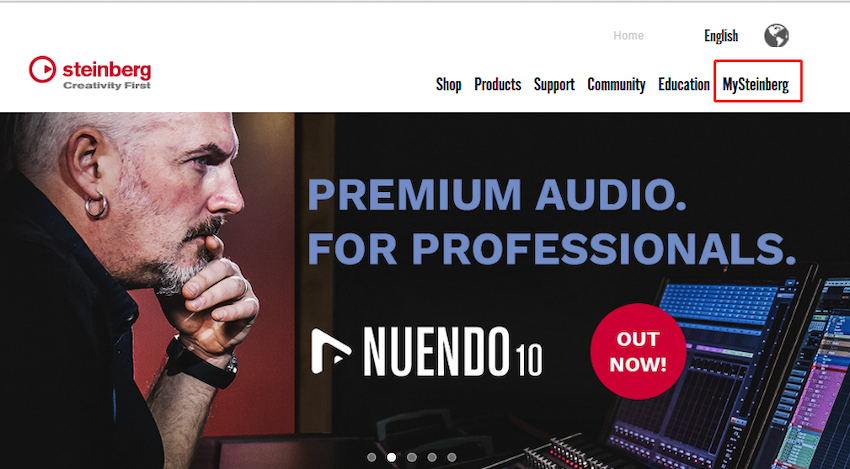
1、進入Steinberg官網:www.steinberg.net,點擊“My Steinberg”
2、登陸MySteinberg賬號,進入用戶中心

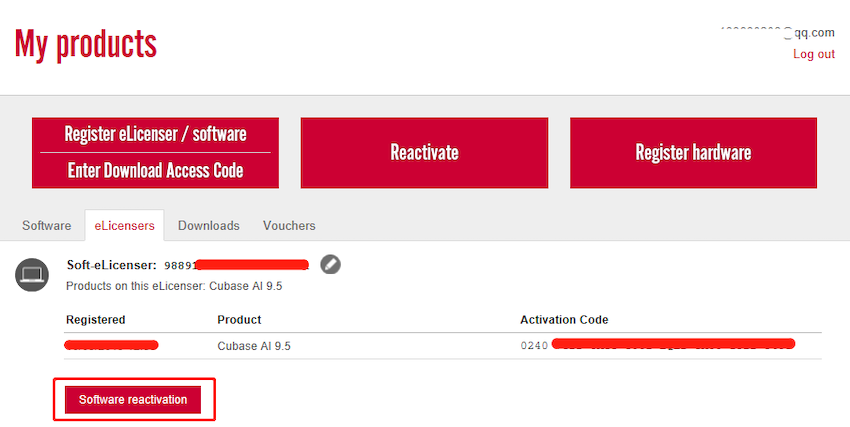
3、在“eLicensers”標簽頁面,選擇舊電腦的Soft-eLicenser,點擊“Software reactivate”鍵:
4、上面的框中填入新系統/電腦的Soft eLicenser,下面的框中填入第一步中記住的“Soft Elicenser”序列號,并點擊“Reactivate”:

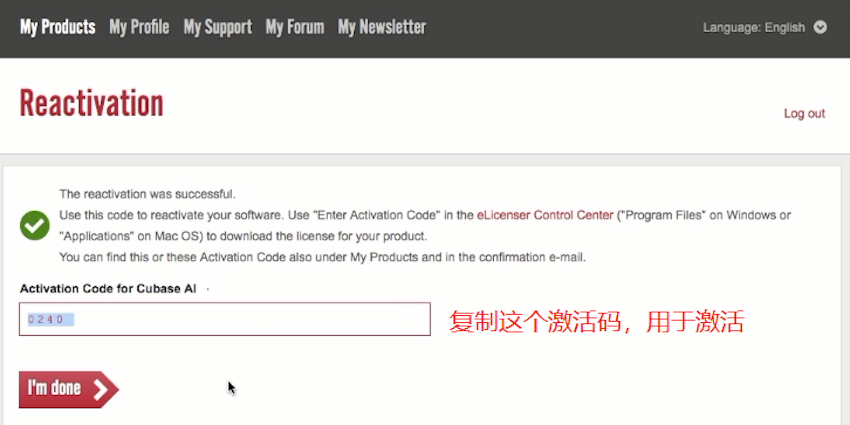
5、保存好出現的新的激活碼。
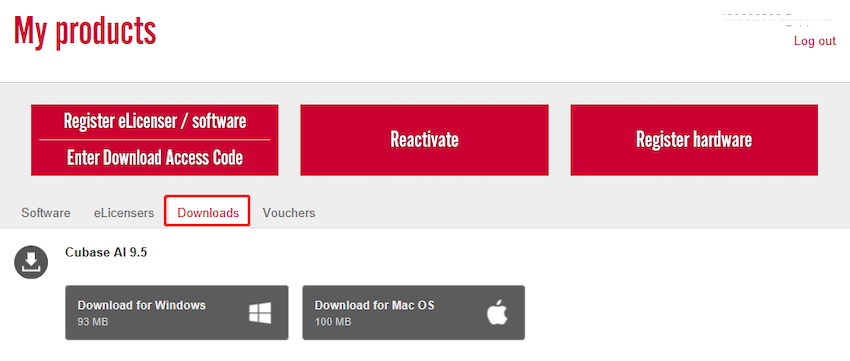
6、在“My Steinberg”中選擇“Download”一欄,并根據自己的系統下載和安裝Cubase AI:
三、激活Cubase AI:
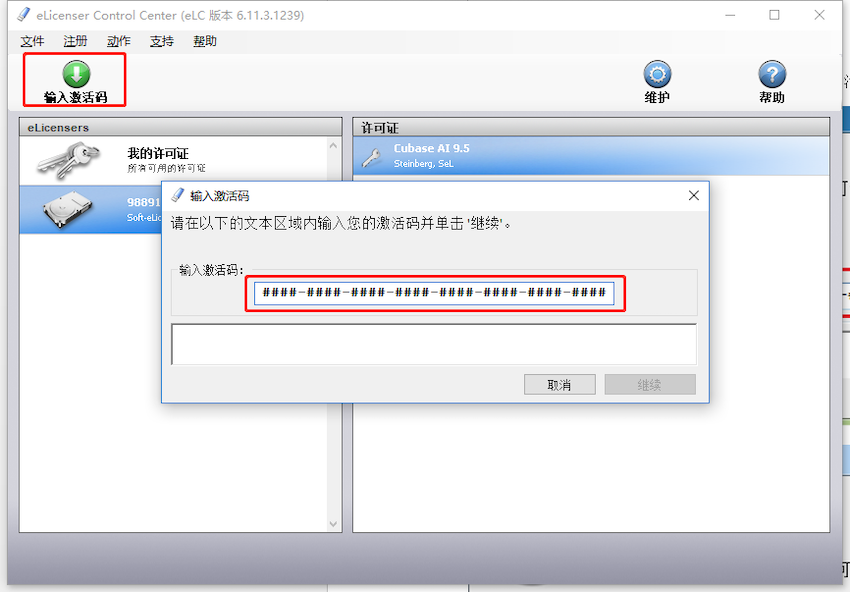
1、打開eLicenser Control Center,輸入激活碼,并激活許可證:
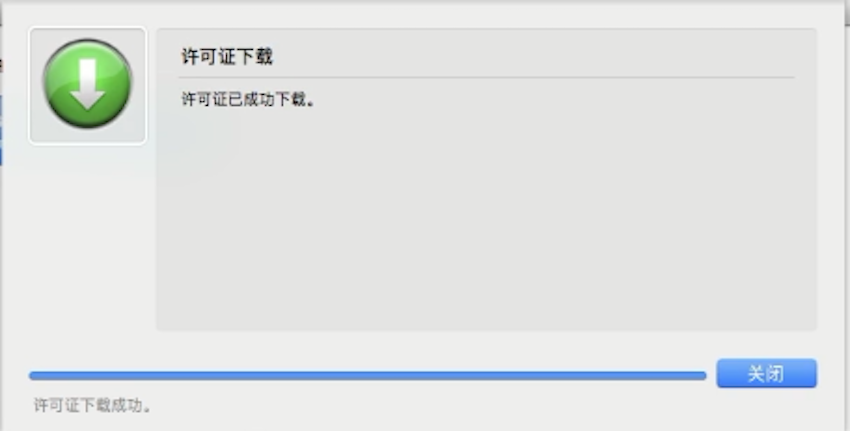
2、許可證下載成功:
上一篇:關于Steinberg Zero Downtime的使用 2017年09月18日
下一篇:Cubase Pro / Artist / Element / AI注冊及安裝教程 2019年06月03日
下一篇:Cubase Pro / Artist / Element / AI注冊及安裝教程 2019年06月03日